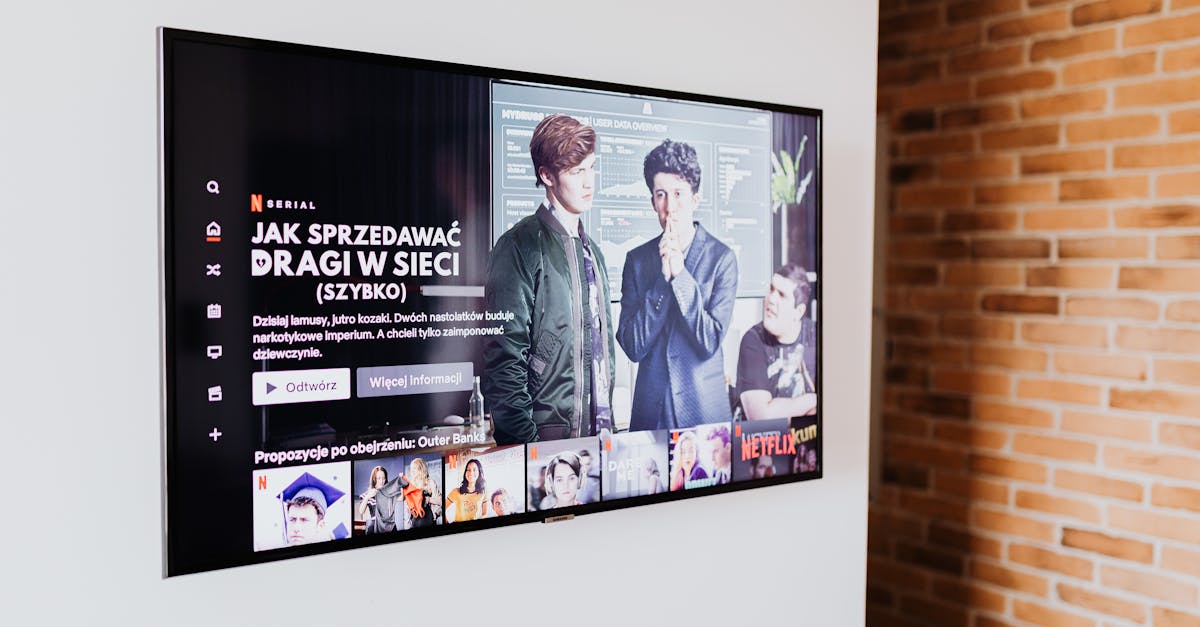
Smart TVs promise convenience but often deliver frustration. Discover five overlooked reasons your smart TV disappoints, and how to fix them.
You bought a smart TV for the seamless streaming, the intuitive interface, and the promise of endless entertainment at your fingertips. Instead, you’re wrestling with sluggish apps, mysterious network drops, and a remote control that feels more like a weapon than a tool. I’ve been there. My first smart TV, a shiny new model just two years ago, started off great. Then, the updates came, the app library bloated, and it slowly devolved into a frustrating black box of buffering and unresponsive clicks. It wasn’t just my imagination; the advertised ‘smart’ features were actively making the experience worse than my old dumb TV with a streaming stick. The mistake I see most often is attributing these issues to ‘getting old’ or ‘just how smart TVs are.’ What changed everything for me was realizing these frustrations are often a symptom of specific, fixable problems, not inherent flaws you have to live with. It turns out, many smart TV frustrations stem from a few common, yet overlooked, culprits.
Key Takeaways
- Bloated pre-installed software and limited storage slow down smart TV performance over time.
- Automatic updates can introduce bugs or reduce compatibility, leading to performance issues.
- Aggressive background data collection strains resources and impacts network stability.
- Subpar Wi-Fi modules and interference cause frequent buffering and dropped connections.
- Overcomplicated remote controls and unintuitive interfaces hinder user experience.
1. Bloated System Software and Limited Storage
When you first unbox a smart TV, it feels zippy. The menus glide, apps load quickly. Fast forward a year or two, and that same TV is a sluggish mess. The primary culprit? The operating system itself, along with the limited storage space and incessant pre-installed applications you can’t remove. Most smart TVs come with a relatively small amount of internal storage, often as little as 8GB, with a significant portion already consumed by the OS and ‘essential’ factory apps. Every system update, every new streaming app you download, every cache file generated by an app, slowly eats away at that precious space.
In my experience, this isn’t just about running out of room for new apps. When the storage approaches its limit, the TV’s operating system struggles to function efficiently. Imagine trying to run a marathon in a crowded closet – it’s just not going to happen gracefully. The TV needs adequate free space for temporary files, system processes, and application caching. When that space is constrained, everything slows down: app launch times, menu navigation, even basic video playback. Manufacturers often prioritize cost-saving with minimal storage, expecting users to only run a handful of apps. However, with the explosion of streaming services and the tendency for apps to grow larger with each update, this quickly becomes a bottleneck.
The specific, actionable point here is to ruthlessly manage your smart TV’s app library and storage. Go into your TV’s settings and look for the ‘Apps’ or ‘Storage’ section. Uninstall any apps you don’t actively use, even if they came pre-installed. Clear the cache for frequently used streaming apps like Netflix, Hulu, or Disney+. This can free up valuable space and noticeably improve performance. What changed everything for me was realizing that many of these pre-installed apps were running in the background, consuming resources even when not actively in use. Deleting them (if your TV allows) or at least disabling them can make a significant difference. Some TVs even offer the option to force-stop background apps, which can provide a temporary reprieve for performance issues.
2. Incessant, Unoptimized Software Updates
Software updates are supposed to improve performance, fix bugs, and add new features. In reality, with smart TVs, they often introduce new problems. Many manufacturers push updates without sufficient testing on all older hardware configurations, leading to a phenomenon known as ‘planned obsolescence by software.’ An update might be optimized for a brand-new processor or a larger RAM module found in the latest models, but it could cripple the performance of a TV purchased just a year or two prior. My personal frustration reached a peak when a major system update on my TV caused frequent audio dropouts, a problem I never had before. It was infuriating to know that a supposed ‘improvement’ had actively degraded my viewing experience.
The nuances here are important: not all updates are bad, but the sheer volume and lack of transparency can be detrimental. These updates can also change app compatibility, alter user interfaces in confusing ways, or even disable features you once relied upon. It’s a common misconception that turning off automatic updates is risky. While it’s true for security-critical devices like computers, for a smart TV primarily used for streaming, the risks are generally lower, and the benefits to stability can be significant.
The actionable step is to disable automatic software updates and manually review them. Go into your TV’s system settings and find the ‘Software Update’ or ‘About’ section. Turn off any ‘Automatic Updates’ or ‘Auto Download’ options. Instead, periodically check for updates manually. Before installing any, do a quick online search for your TV model and the specific update version (e.g., ”[TV Model][Update Version] issues”). Look for user reports of performance degradation, new bugs, or compatibility problems. If you see widespread complaints, consider holding off on that particular update. What changed everything for me was adopting this cautious approach, allowing me to selectively update only when I was confident it wouldn’t introduce more problems than it solved.
3. Aggressive Background Data Collection
Your smart TV isn’t just a display; it’s a data collection hub. Many manufacturers and embedded ad partners are constantly gathering information about your viewing habits, app usage, and even the content you watch (via Automatic Content Recognition or ACR). This background activity isn’t just a privacy concern; it’s a performance drain. The TV’s processor and network module are constantly working to collect, package, and transmit this data, consuming valuable resources that could otherwise be dedicated to running your streaming apps smoothly.
This is where the term ‘smart’ becomes a double-edged sword. The very features designed to personalize your experience (like recommending content) often rely on this data collection, creating a continuous loop of background processing. Many users are unaware of the extent of this activity, assuming their TV is largely idle when not actively streaming. In my experience, even when the TV is ostensibly ‘off’ (but still plugged in), it’s often engaged in some form of data collection or network activity. This persistent background load contributes to overall system sluggishness and can even impact your home network’s bandwidth, especially if you have a modest internet connection or other demanding devices.
The specific action to take is to dig into your TV’s privacy settings and disable all non-essential data collection. Look for settings related to ‘Viewing Data,’ ‘Smart Features,’ ‘Personalized Ads,’ ‘ACR’ (Automatic Content Recognition), or ‘Interest-Based Advertising.’ These are often buried deep within the privacy or general settings menus. While you might not be able to turn off all data collection, disabling the most aggressive options can significantly reduce background processing. What changed everything for me was realizing how much network chatter my TV was generating, even in standby. Reducing this chatter not only improved performance but also gave me a greater sense of control over my digital footprint.
4. Subpar Wi-Fi Modules and Interference Issues
Many smart TVs, even those in higher price brackets, come equipped with surprisingly mediocre Wi-Fi modules. These modules might be cheap, older generation, or poorly shielded, making them highly susceptible to network interference and weak signals. This manifests as frequent buffering, dropped connections, or a complete inability to connect to your home Wi-Fi network, even if other devices like your phone or laptop are working perfectly nearby.
It’s a common misconception that if your router is fast, all your devices should perform equally. The reality is that the receiving device’s Wi-Fi hardware plays a crucial role. Your smart TV might be struggling with a weak 2.4GHz signal when your phone connects seamlessly to a stronger 5GHz band. Furthermore, many household appliances like microwaves, cordless phones, and even some smart home devices operate on the 2.4GHz band, creating a crowded environment for your TV’s often-underpowered Wi-Fi chip. Concrete walls, fish tanks, and even large metal objects can also act as barriers, degrading signal quality. In my own home, a simple repositioning of my TV and router improved my streaming stability overnight.
The actionable solution here is multi-pronged: optimize your Wi-Fi environment and consider a wired connection or external adapter. First, try moving your router closer to your TV, or vice versa, if practical. Ensure there are no large metal objects or other interfering electronics directly between them. If your TV supports it, use the 5GHz Wi-Fi band for less congestion, though this band has a shorter range. The most reliable solution, and what changed everything for me for consistent 4K streaming, is a wired Ethernet connection. If your TV has an Ethernet port, run a cable directly from your router. If that’s not feasible, consider a powerline adapter or a Wi-Fi extender with an Ethernet port near the TV. Alternatively, a high-quality external Wi-Fi adapter (if your TV’s USB port supports data and has driver compatibility, though this is less common) can sometimes outperform the built-in module.
5. Overcomplicated and Unintuitive Remote Controls
The remote control is your primary interface with your smart TV. If it’s poorly designed, overloaded with buttons, or prone to lag, it fundamentally undermines the ‘smart’ experience. Many smart TV remotes suffer from button bloat, with dedicated buttons for streaming services you don’t use, navigation pads that are awkward to operate, and voice control that misinterprets your commands. This isn’t a minor annoyance; it’s a constant source of friction that makes every interaction frustrating.
It’s a common misconception that more buttons equate to more functionality. In practice, a cluttered remote leads to decision fatigue and accidental presses. The rise of minimalist remotes attempts to address this, but often swings too far, burying essential functions in layers of on-screen menus. Furthermore, many smart TV remotes rely on Bluetooth for advanced features, which can introduce lag or require frequent re-pairing, adding another layer of irritation. The mistake I see most often is accepting the factory remote as your only option, even when it’s actively sabotaging your enjoyment.
The actionable solution is to simplify your control interface. First, consider investing in a universal remote control that allows you to consolidate controls for your TV, soundbar, and other devices. Many of these offer customizable button layouts or learning functions to streamline common tasks. Even better, explore using your smartphone as a remote. Most smart TV platforms (like Android TV, Roku, or Fire TV) have dedicated smartphone apps that offer a much more intuitive interface, including a keyboard for typing search queries and touch-based navigation. What changed everything for me was ditching the default remote entirely for my smartphone app. The ability to type passwords and search terms quickly, combined with a cleaner touch interface, transformed my smart TV experience from a chore into a seamless interaction. For guests, a simple universal remote can be programmed with only the essential functions, making it far less intimidating.
Frequently Asked Questions
Q: Why is my smart TV so slow even though my internet is fast?
A: Fast internet is crucial, but slow performance often stems from the TV itself. Common culprits include bloated system software, limited internal storage, background data collection, or a subpar Wi-Fi module struggling with interference, all of which strain the TV’s processing power and network capabilities regardless of your internet speed.
Q: Should I factory reset my smart TV to make it faster?
A: A factory reset can often improve performance by clearing all user data, downloaded apps, and accumulated cache files, returning the TV to its out-of-the-box state. However, it will delete all your settings and you’ll have to reinstall and log into all your apps again. Only consider this after trying other optimization steps first.
Q: Is it better to use an external streaming device with my smart TV?
A: Absolutely. In my experience, an external streaming device (like a Roku, Fire TV Stick, Apple TV, or Chromecast) can significantly improve the ‘smart’ experience. These devices often have more powerful processors, dedicated storage, and better software optimization than a TV’s built-in smart features, leading to faster, more reliable streaming.
Q: Can I turn off the smart features on my smart TV?
A: Many smart TVs allow you to disable some ‘smart’ features, especially data collection and personalized ads, in the privacy or system settings. You can also simply not connect it to the internet and use it purely as a display with an external streaming device, effectively turning it into a ‘dumb’ TV.
Q: How often should I clear the cache on my smart TV’s apps?
A: There’s no fixed schedule, but if you notice a particular app (like Netflix or YouTube) becoming sluggish or buggy, clearing its cache is a good first step. Periodically, perhaps once a month or every few months, go through your most frequently used apps and clear their caches to free up space and maintain performance.
In a world where every device promises to be ‘smart,’ it’s easy to get frustrated when reality falls short. Your smart TV, far from being a seamless portal to entertainment, can often feel like a digital antagonist, riddled with glitches and slowness. But as I’ve found, these aren’t inevitable truths. By understanding the underlying reasons for common smart TV frustrations – from bloated software and constant updates to aggressive data collection and clunky remotes – you gain the power to reclaim your viewing experience. My journey from exasperation to a genuinely enjoyable smart TV setup taught me that intentional management and a few strategic adjustments can transform a frustrating device into a fantastic one. Don’t settle for subpar performance; take control of your smart TV today and unlock the seamless entertainment you originally bought it for.
The Scribe
Eliza Thorne
Home organization and mindful living
A passionate advocate for sustainable living and community well-being, Eliza brings years of experience in organizing and simplifying.